
Set up filing for Colorado
Provide your Colorado tax account information to set up automated filing.
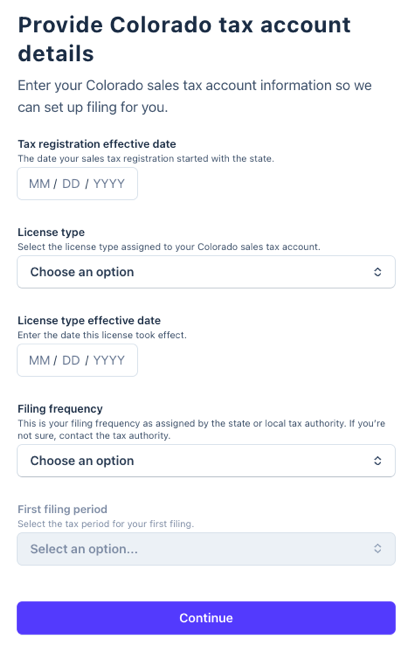 Tax registration effective date
 Tax registration effective date
- The date your sales tax registration started with the state.
- Check your sales tax registration certificate. You can also contact the Colorado Department of Revenue at 303-238-7378 to request this information.
License type
- Select the license type assigned to your Colorado sales tax account: Sales Tax, Use Tax, or Both Sales and Use Tax.
- Log in to your Colorado Revenue Online account and go to Accounts. Your license type is listed on the left side of the screen, above your business name and address.
License type effective date
- Enter the date this license took effect -- it may differ from your registration effective date.
- Your license type effective date is listed on the sales tax permit mailed to you by the state. You can also contact the Colorado Department of Revenue at 303-238-7378 to request this information.
Filing frequency
- This is your filing frequency, as assigned by the state or local tax authority.
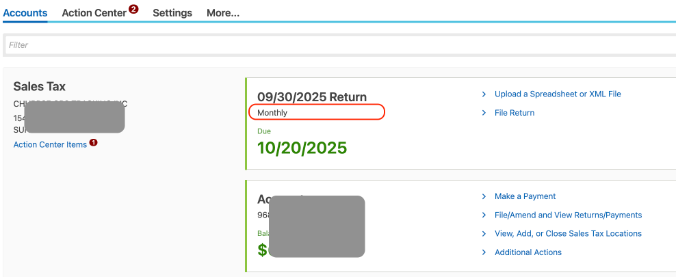
- Log in to your Colorado Revenue Online account and go to Accounts. Your filing frequency is listed under the next return to be filed.
What to expect next
After you grant third-party access to TaxJar and approve the Power of Attorney request, here's what will happen:
- Under review: Within a few days, TaxJar will review your submission for accuracy and process your application.
- IMPORTANT: Your TaxJar account is created using the email address associated with your Stripe account, so if the TaxJar team needs to contact you, this is the email address we use by default. (Follow these instructions if you want to change this email address within your TaxJar account).
- Automatic filing enabled: After access is confirmed, TaxJar will process your application. Then you’ll be ready to file.
- File your first tax return: When your first filing period is due, you’ll receive an email to review the return before TaxJar submits it.