Set up your Rhode Island filing

When setting up your Rhode Island return, you'll need to provide the following information.

If you're unsure about any of this information, check your state sales tax registration certificate or call the Rhode Island Department of Revenue at 401-574-8955 (press 2 for Sales & Use Tax).

Do you have a physical presence in Rhode Island?

Physical presence may include: an office, storefront, employee, salesperson, contractor, warehouse, inventory, or trade show attendance.

  • If you answer YES, you'll be asked how many physical locations you have. You’ll then be asked to provide the address for your in-state physical location.
    • Note: TaxJar only supports users who have a single physical location in the state of Rhode Island.

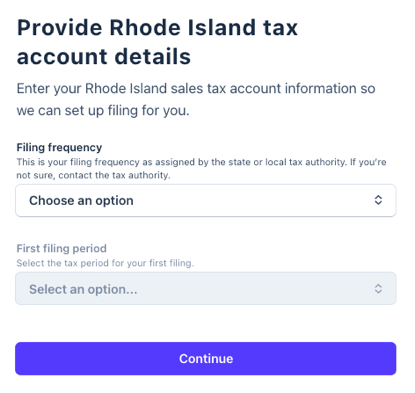
Your Rhode Island tax account details

You'll need your sales tax registration information, which was provided to you by the state when you received your sales tax permit.

Tax filing frequency

This is your filing frequency as assigned by the state or local tax authority. If you’re not sure, contact the tax authority.

You'll then see the first tax return we expect to file for you, based on the current date and the filing frequency you selected.


Review and submit

Take a moment to review your filing application. Once you've confirmed that all information is correct, click Submit.


Next step: Give TaxJar third-party access to file for you

After you complete your filing application, follow the steps to log into your Rhode Island Tax Portal account to give TaxJar third-party access to your tax account.

Navigate to Manage Authorized Users
From the top navigation menu, select Manage Authorized Users under the Profile Information dropdown.
Add TaxJar as a new authorized user
  1. Select Add New Authorized User.
  2. Enter User ID: TaxJar3P.
  3. Select the appropriate business and set Start Date as the first day of the current year. Leave End Date blank.
Grant access to TaxJar
  1. Select Tax Type Authorizations.
  2. Select Sales (set Start Date as the first day of the current year; leave End Date blank).
  3. Select Tax Type Functions and assign File Forms and Make Payments.
  4. Select Ok in the bottom right corner.
  5. If available, select Retail Sales (set Start Date as the first day of the current year; leave End Date blank).
  6. Select Tax Type Functions and assign File Forms, Make Payments, and View License.
  7. Select Ok in the bottom right corner.
  8. On the Tax Type Authorizations page, select Ok in the bottom right corner.
  9. If a popup appears saying changes will take effect after selecting Save on the User Detail Page, select Ok again.
  10. On the User Details page, select Save in the bottom right corner.
  11. On the confirmation page, confirm all five functions have been assigned and select Confirm in the bottom right corner.

What to expect after that

After you give TaxJar third-party access to file for you, here's what will happen:

  • Under review: Within a few days, TaxJar will review your submission for accuracy and process your application.
    • IMPORTANT: Your TaxJar account is created using the email address associated with your Stripe account, so if the TaxJar team needs to contact you, this is the email address we use by default. (Follow these instructions if you want to change this email address within your TaxJar account).
  • Automatic filing enabled: After access is confirmed, TaxJar will process your application. Then you'll be ready to file.
  • File your first tax return: TaxJar will email you at the beginning of each filing period to  review your return before it's submitted.