
Set up filing for Hawaii
Provide your Hawaii tax account information to set up automated filing.
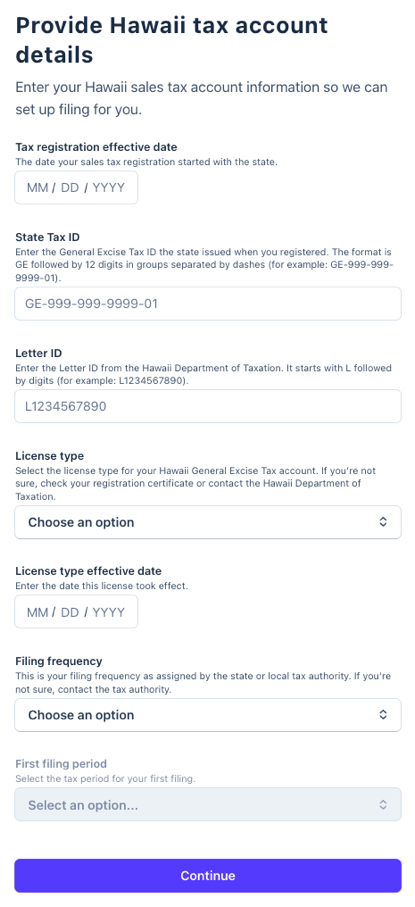 Tax registration effective date
 Tax registration effective date
- The date your sales tax registration started with the state.
- Log in to your Hawaii Tax Online account, select the General Excise tile, and look for the opened date listed on the left side of the screen.

State Tax ID
- Enter the General Excise Tax ID the state issued when you registered. The format is GE followed by 12 digits in groups separated by dashes (for example: GE-999-999-9999-01).
- Log in to your Hawaii Tax Online account and select the General Excise tile. Your State Tax ID is listed on the left side of the screen.
Letter ID
- Enter the Letter ID from the Hawaii Department of Taxation. It starts with L followed by digits (for example: L1234567890).
- In your Hawaii Tax Online account, go to More > Correspondence > View Letters > Registration Welcome Letter to find your Letter ID. If the letter isn't online, refer to the physical copy mailed to you after registration.
License type
- Select the license type for your Hawaii General Excise Tax account: Standard or Maximum Pass-On. If you’re not sure, check your registration certificate or contact the Hawaii Department of Taxation.
- If you're unsure which license type applies, contact the Hawaii Department of Revenue at 808-587-4242.
License type effective date
- Enter the date this license took effect.
- Log in to your Hawaii Tax Online account, select the General Excise tile, and look for the opened date on the left side of the screen.
Filing frequency
- This is your filing frequency as assigned by the state or local tax authority.
- Log in to your Hawaii Tax Online account and select the General Excise tile. Your filing frequency appears under the next return to be filed.

What to expect next
After you grant third-party access to TaxJar, here's what will happen:
- Under review: Within a few days, TaxJar will review your submission for accuracy and process your application.
- Automatic filing enabled: After access is confirmed, TaxJar will process your application. Then you'll be ready to file.
- File your first tax return: TaxJar will email you at the beginning of each filing period to review your return before it's submitted.